Contents
As of 16 November 2026. The feature is in beta and changes constantly.
Since 10 November 2026, businesses can claim their profile in ChatGPT. In Business Hub you prove the company is yours, confirm your identity, and can then manage description, category, logo and products and see how often ChatGPT mentions you. For Swiss companies the door isn't open everywhere yet: online businesses with a website usually get through, businesses with a shopfront end up on a waitlist. This guide walks through every step and explains why some people don't see Business Hub, their profile or the blue check.
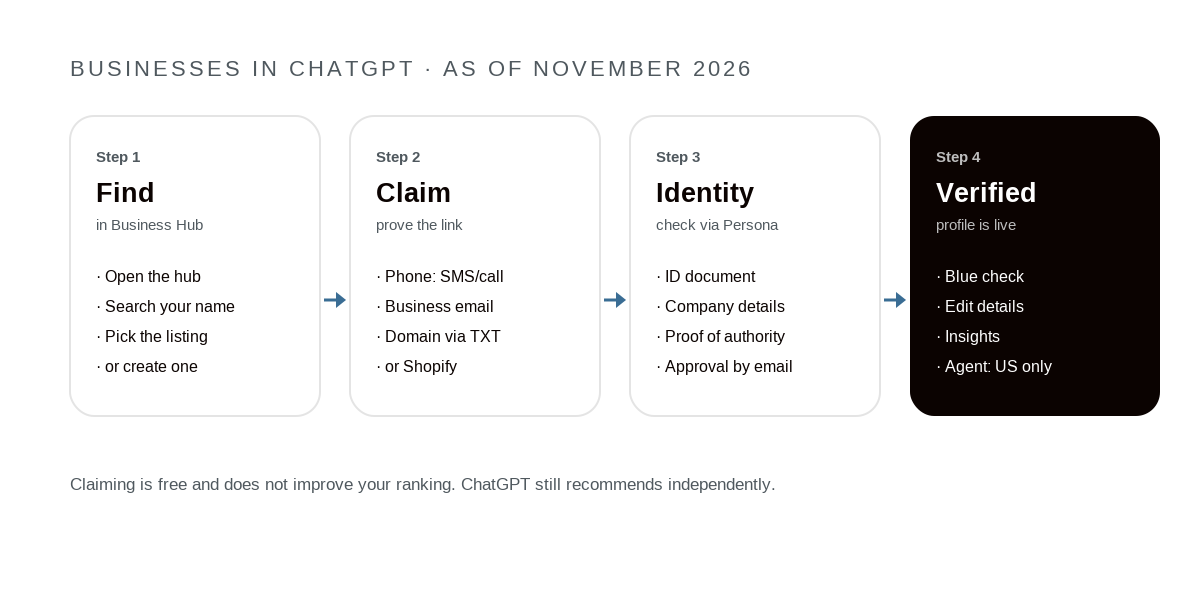
What is "Businesses in ChatGPT"?
OpenAI calls the new feature "Businesses in ChatGPT". It has two parts:
- Business Hub: At chatgpt.com/business-hub you claim your business profile, add details, upload a product feed and see insights. It is meant for businesses in every country where ChatGPT is available.
- Business Agents: A dedicated chat with your business inside ChatGPT that answers questions about your offer using your information. For now, this part is limited to eligible online stores and online service providers in the US.
The profile often exists before you claim it. OpenAI builds listings from its own and third-party data and, under its terms, may display and supplement them without your involvement. When your business appears in an answer, the profile opens with one click. An unclaimed profile shows a link to claim it.
If you know Google Business Profile, the idea is similar. The categories in Business Hub even largely match Google's.
What a claimed profile does, and what it doesn't
| It gives you | It does not give you |
|---|---|
| Correct website, description, category, logo, delivery and return details | Higher placement in answers |
| A blue check after the identity check | More recommendations or sales |
| Insights: mentions, website clicks and the topics you are discovered for | Access to individual questions or user chats |
| Product feeds with prices and availability for retailers | Control over what ChatGPT writes about you from other sources |
| In the US: your own Business Agent | In Switzerland: your own Business Agent |
OpenAI stresses that ChatGPT keeps recommending and comparing independently, and that advertising in ChatGPT doesn't influence its answers either. The profile is no substitute for actually being recommended by AI assistants. It's the business card that should be correct when ChatGPT names you. Whether and how often that happens is still decided by your website and by the sources that write about you. More on that below and in our article on how AI assistants recommend businesses.
Who can claim a profile in Switzerland?
You are eligible if you own the business or are authorized to represent it. OpenAI also checks industry, location and integrity and excludes some categories for now. For Swiss businesses, as of mid-November 2026:
| Type of business | Status in Switzerland |
|---|---|
| Online business or service provider with a website (agency, software, consulting, online store) | Creating and verifying a profile works in most cases |
| Online store on Shopify | Can also verify through Shopify; eligible products are already in ChatGPT via Shopify Catalog |
| Local store, restaurant, practice with a shopfront | Usually a waitlist. According to OpenAI, local stores and restaurants can currently only claim existing listings in the US |
| Pure service business without an online offer | The "service" option was marked "Coming soon" at launch |
| Business Agent (dedicated chat) | US only |
Businesses with a contract with OpenAI, for example as an advertiser or Enterprise customer, can also claim through their OpenAI contact. Everyone else goes through Business Hub.
Before you start: what to have ready
Claiming is quick when everything is at hand and drags on for days when one detail is missing. Have this ready:
- A ChatGPT account owned by the company. A profile can't be moved from a personal account to a company account later, and a published profile can't be deleted, not even by OpenAI support. Use an account with a company address such as marketing@yourcompany.ch, not an employee's personal account.
- Access to your domain's DNS settings, meaning the account with your host or domain registrar. If your web agency manages the domain, agree beforehand who sets the record.
- The business phone number and business email publicly linked to your company, if you want to prove the claim that way.
- An official ID of the person claiming: for example a passport or ID card.
- Company details exactly as in the commercial register: legal name, address (no P.O. box) and your Swiss company ID (UID, CHE-xxx.xxx.xxx). These must match during the identity check.
- If you are an agency or freelancer: written authorization. The company itself should still claim, then invite the agency.
- A description of up to 300 characters, a logo and, optionally, a cover image.
Step by step: how to claim your business in ChatGPT
1. Open Business Hub and search for your business name
Sign in to ChatGPT and open Business Hub from the sidebar or directly at chatgpt.com/business-hub. If the sidebar entry is missing, try the direct address. Type your business name in the search box.
Note the small line below the search box: by continuing you accept the Businesses in ChatGPT Terms. Read what they say further down before you start.
2. Pick your listing or create a new one
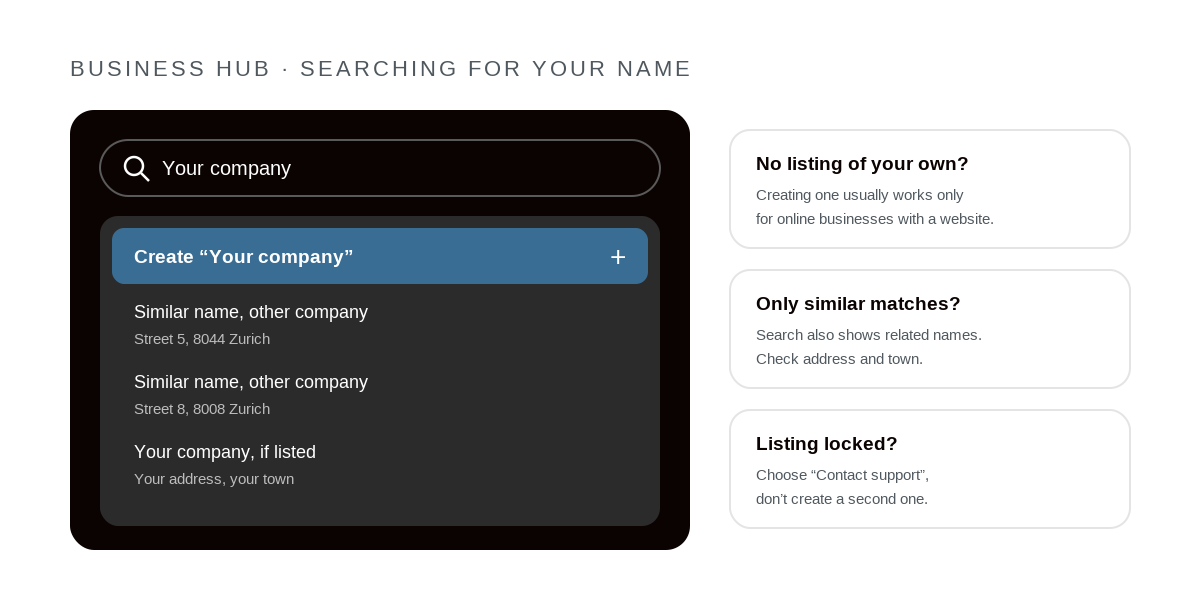
The search gives you three possible outcomes:
- Your listing appears: Select it and confirm the ChatGPT account you want to manage it with.
- Only similar names appear: The search also finds related terms and other businesses in your region. If yours isn't there, choose "Create 'Your business name'" at the top.
- The listing says "Contact support": The listing is locked, for example because it belongs to a brand with several locations. Request access through the button and don't create a second listing.
When you create a profile, ChatGPT asks how customers reach you: through a physical location, an online store or a service. For Swiss businesses this choice often decides whether you continue or land on the waitlist. More on that in the troubleshooting section.
3. Prove your claim
Depending on the listing, OpenAI offers one or more methods:
- Business phone number: a code by SMS or automated call to the number linked to the listing.
- Business email address: a code to the address linked to the business.
- Website domain: a TXT record in your domain's DNS settings.
- Shopify: sign in to the business's Shopify store.
The domain is the most reliable method, and retailers need it anyway: without a verified domain, "Add products" stays locked even if the claim was approved by phone.
How to set the TXT record:
- Enter your domain without "www".
- Copy type, name and value exactly from Business Hub. The name is
openai-business-profile; the value starts withopenai-business-profile=and ends with a code that is valid only for your claim. - Create the record with the provider that hosts your nameservers. At Swiss hosts such as Hostpoint, Infomaniak, cyon or Metanet you'll find it under DNS or zone editor. If your nameservers are on Cloudflare, the record belongs there, not at your registrar.
- Check that the record is visible before you click "Verify domain".
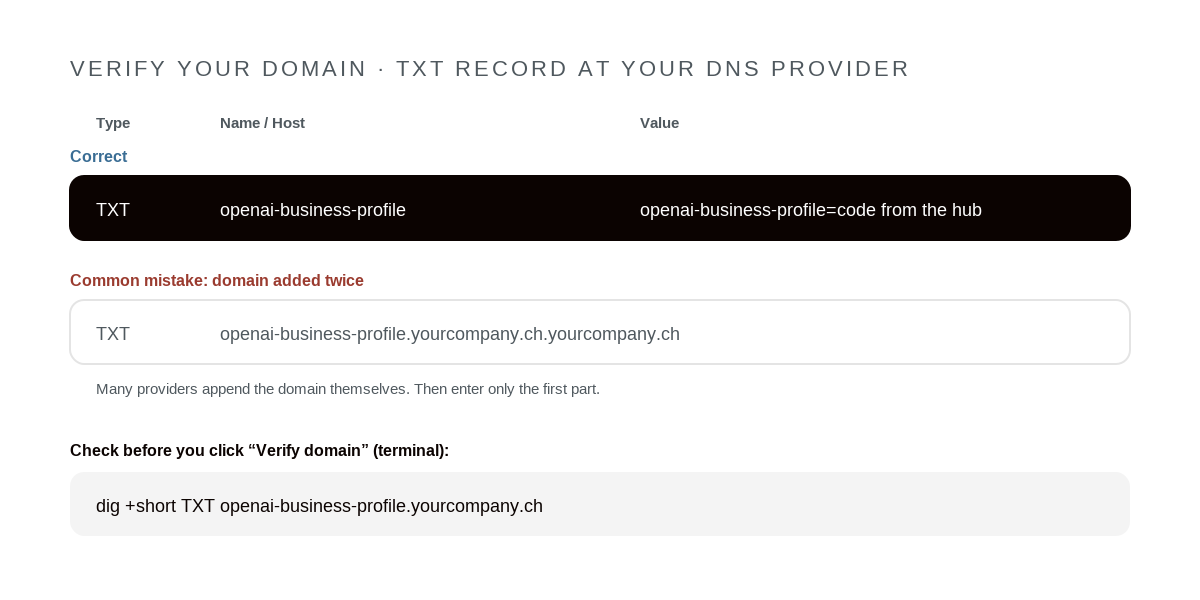
On a Mac or Linux, check the record in the terminal with dig +short TXT openai-business-profile.yourcompany.ch; on Windows, with nslookup -type=TXT openai-business-profile.yourcompany.ch 8.8.8.8. If the value with your code shows up, you can verify.
4. Add your details
For a new profile, ChatGPT asks for category, description, phone, email, and delivery and return options. A few tips:
- Category: ChatGPT suggests one. Look at the alternatives; the list has several hundred categories. Pick the same primary category as in your Google Business Profile so your details match everywhere.
- Description: up to 300 characters. State plainly what you offer, for whom and where. OpenAI's policies ban misleading details and unsupported promises.
- Phone and email: both optional, but each is confirmed with a six-digit code. Only enter contacts you can access at that moment.
- Delivery and returns: these questions appear even for service businesses. Choose what applies, so if in doubt, "no delivery" and "no returns".
The profile is then saved as a draft. At this point ChatGPT offers credit for ChatGPT Ads and an upgrade. Neither is needed for the profile.
5. Confirm your identity with Persona
Only the identity check unlocks everything: the blue check, editing details, the product feed and insights. OpenAI uses the external service Persona for it. You choose "Verify with Persona", photograph your ID and enter your company details.
- Name and address must match the commercial register exactly. If you trade under a brand that isn't your legal name, enter the legal name as the company name and the brand as the trading name.
- Registration number: the field shows a US tax number as an example. Enter your UID in the format CHE-123.456.789.
- Camera: if your laptop camera is too blurry, cancel the session and do the check on your phone.
- Finishing later: if you proved the claim by phone or domain and skipped Persona, you'll find the step under the Businesses tab as "Complete verification with Persona".
Important: a new profile is published automatically on approval; there's no separate publish button. Check description and category before you submit the check.
6. Wait for approval
OpenAI reviews the claim and the Persona details and emails you a decision or a request for more information. This takes anywhere from a few minutes to a few days. During the review you can withdraw your request. A draft can be deleted as long as it isn't published: Businesses tab, select the draft, three-dot menu, "Delete draft". Users report that this option disappears once you click Verify.
Troubleshooting: why you don't see Business Hub, your profile or the check
Most problems come from the gradual rollout, not from a mistake on your side. The most common cases and what helps:
| What you see | Cause | What helps |
|---|---|---|
| No Business Hub in the sidebar | The feature is rolling out gradually | Open chatgpt.com/business-hub directly |
| A waitlist notice | Access opens by country and business type | Wait, OpenAI emails you. Online businesses: try the website path |
| Your business is missing from search | No listing, or a different name | Try variants (with and without AG/GmbH), otherwise create one |
| "Contact support" on the listing | Listing locked, often for brands with locations | Request access through the button |
| "Service" option greyed out | Not yet available | Create through your website if your offer is available online, otherwise wait |
| Domain won't verify | Record not visible yet, wrong name, wrong DNS zone or expired code | Check with dig or nslookup, enter the name without the domain, check nameservers, get a new code |
| No SMS code | Landline or VoIP number can't receive SMS | Choose the automated call, during office hours |
| "Verification failed" at Persona | Name, address or number differs from the register, blurry photo | "Try again", otherwise contact support with the step and a screenshot |
| No blue check | Persona not approved yet | Complete Persona under the Businesses tab and wait for the email |
| Profile "published" but not findable in ChatGPT | ChatGPT shows profiles only when it names you in an answer | Not a bug. Visibility depends on your website and sources |
| Changes don't appear | OpenAI reviews changes, and ChatGPT also uses other sources | Wait a few days, fix conflicting details on other sites |
| Insights empty | Threshold not reached or data not processed yet | Wait a few days; blank doesn't mean zero |
| A notice that the agent builder isn't available | Business Agents are US only | No fix in Switzerland for now |
Waitlist: why Swiss businesses often have to wait
Outside the US, many businesses hit a waitlist after clicking "Get started". OpenAI is opening the feature gradually and emails you when you can continue. If you're waiting, there's nothing to do. One business in Germany was let through after four days.
The pattern in reports so far is clear: the physical-location path almost always leads to the waitlist, both when claiming an existing listing and when creating a new one. The "Create" then "Through a website" path, on the other hand, usually works right away for online businesses, including from Switzerland.
Be careful with that detour: if your shopfront already has a listing, you create a second profile. OpenAI's policies ban duplicate profiles, and a published profile can't be deleted. For a business with a shopfront, waiting is the better choice. For an agency, an online store or a software company without walk-in customers, the website path is the right one.
The domain code expires
The TXT record has an expiry time shown in Business Hub. In some cases the code expired after about half an hour. Some DNS providers publish changes only after a few minutes or hours. So set the record right after you get the code, check it with dig and only then click "Verify domain". If the code has expired in the meantime, get a new one and replace only the value.
Two more pitfalls: the record sits in the wrong zone because your nameservers are with a different provider than your domain. Or the name was entered with the domain although the provider appends it, so the record ends up as openai-business-profile.yourcompany.ch.yourcompany.ch. The dig command above shows both immediately.
Persona rejects you
The identity check is one of the most common stumbling blocks. Rejections arrive by email, often without a reason. The usual causes:
- The company name differs from the register, for example "Sample" instead of "Sample AG".
- The address is a P.O. box or differs from the commercial register.
- The registration number field holds something other than the UID.
- The ID photo is blurry or has glare.
If Business Hub offers "Try again", correct your details and retry. If it doesn't, contact OpenAI support through the help center. Name the step and the error message and attach a screenshot without sensitive data. For sole proprietorships the check can be harder because Persona asks for a registration number. In other countries, sole traders failed at exactly this field. Check in the federal UID register beforehand whether your business has a UID.
Profile published, but nobody sees it
A published profile isn't an ad that appears somewhere permanently, and according to reports so far there's no public link to share yet. ChatGPT shows the profile when it names your business in an answer and someone clicks it. If your business isn't named, the profile changes nothing. OpenAI says so itself: claiming a profile doesn't change its visibility in ChatGPT.
Answers also differ from person to person. Location, the wording of the question and earlier chats can influence which businesses ChatGPT names. When you test yourself, ask several questions the way your customers would, in a new chat. How to measure this properly is covered in our article on measuring AI visibility.
Wrong details in a profile you don't control
If someone else has claimed your business, open the profile, choose the three-dot menu and then "Dispute ownership". You then prove through Persona that you represent the company. For wrong details in an unclaimed profile there is no dedicated process yet. The most effective fix is to correct your details wherever they appear on the web: on your website, in your Google Business Profile, on Yelp, in directories such as local.ch and search.ch, and on industry portals. The more consistent they are, the more likely ChatGPT is to pick up the right ones.
Reading the insights correctly
After Persona approval, Business Hub shows the last 7 or 28 days under "Insights":
- Mentions: for online businesses, a mention counts only when ChatGPT links to your website. If ChatGPT names you without a link, it doesn't count. For local businesses, every answer in which your location appears as a result counts.
- Website clicks: how often people clicked from ChatGPT to your website. A click isn't yet a visit recorded by your analytics.
- Discovery topics: grouped conversation themes in which you were mentioned or cited. You don't see individual questions. The table only appears after a certain number of mentions, according to analyses about 15.
Early reports show the data lags by about two days and, after approval, is backfilled for 28 days, including the time before you claimed. A blank metric only means the threshold wasn't reached, so many smaller businesses will see little or nothing at first. If you want to know which questions bring up your competitors but not you, you still need your own measurement with concrete questions.
The terms: what you accept with the first click
Using Business Hub means accepting the Businesses in ChatGPT Terms on behalf of the company. Know three points before you continue:
- OpenAI keeps control of the profile. OpenAI may create a profile without your involvement and supplement, change or replace your details with other sources. Claiming doesn't give you exclusive control over its content.
- Basic data stays usable for good. For name, address, contact details, category, opening hours and website, OpenAI receives a perpetual and irrevocable licence to display them.
- Covenant not to sue. You agree not to sue OpenAI over data you submit in the hub, nor over content that was published on your websites at any time, including before you claimed. The only exception is OpenAI breaching these terms themselves.
For most SMEs the third point matters little. For publishers, specialist portals and anyone who licenses their content or wants to reserve rights against AI companies, it carries weight. If you upload a product feed, you must also let OpenAI's crawlers and agents access your website, and any text and data mining reservations no longer apply to OpenAI. In that case, have the terms reviewed by a lawyer. This isn't legal advice.
Multiple locations, brands and agencies
- Multiple locations: each brand is managed separately; central management for parent companies doesn't exist yet. Claiming the main brand doesn't claim its locations. For brands with a managed claim process, location profiles are locked by default.
- Team and agency: the person who claimed the profile invites team members and agencies in Business Hub. Each person uses their own ChatGPT account. If the profile was claimed in a ChatGPT workspace, invitees may need to be members of that workspace.
- Don't forward personal invitations: a claim invitation is valid for the address it was sent to.
For agencies, this means: let the client claim with a company account and their own identity check, then get invited. Never claim in your own name, or the profile stays tied to your account, and transfers aren't currently supported.
Common mistakes when claiming
- Claiming with a personal account. The profile can't be transferred.
- Creating a second profile because the first is stuck on the waitlist. Duplicate profiles break the policies and can't be deleted.
- Starting Persona with company details that don't match. Keep your commercial register extract next to you.
- Writing the description as an ad. Factual details are allowed and more useful; unsupported promises aren't.
- Choosing a different category than on Google. Conflicting details weaken the picture ChatGPT forms of you.
- Waiting for insights instead of measuring. The numbers are aggregated, delayed and appear only above a threshold.
- Mistaking the profile for the real work. It keeps your details correct; it doesn't earn recommendations.
What matters more than the profile
Whether ChatGPT recommends your business isn't decided in Business Hub. ChatGPT searches the web, reads websites, directories, review sites and media coverage, and names the businesses it finds clear and consistent information about. The profile is the foundation; the recommendation comes from there:
- A website that answers questions: one page per service, with prices or price ranges, process, service area and evidence of your experience.
- Consistent details everywhere: the same name, address and category on your website, Google, your ChatGPT profile and directories.
- Sources that write about you: industry portals, comparison sites, trade media and reviews. More in our article on digital PR for AI visibility. If ChatGPT quotes old criticism about you, read When ChatGPT quotes old negative reviews.
- Measuring where you're missing: the Business Hub insights only show where you already appear.
Online stores also need a product feed. How stores prepare for shopping through AI agents is covered in our article on agentic commerce in Switzerland. And if you also want to advertise in ChatGPT, see our article on ChatGPT Ads in Switzerland.
How we help
As an SEO and GEO agency, we set up the profile with you: we prepare description and category, set the DNS record, guide you through the Persona check and align the details with your website and Google profile. You claim with the company account, then invite us. The bigger lever is the work that gets ChatGPT to name you at all. How we approach it is on our page on Generative Engine Optimization. Whether ChatGPT, Gemini and Claude name your business today is shown by the free AI visibility check.
Conclusion
Claim your business profile in ChatGPT: it's free and makes sure your details are right when ChatGPT names you. Use a company account, keep your commercial register extract and DNS access at hand, and expect a waitlist if you have a shopfront. Read the terms first, especially if your content is your business. And don't expect recommendations from the profile: you still earn those with a good website and with sources that write about you.

About the author